Your daily driver
The day-to-day of running a book of clients — reading what got delivered this week, keeping clients in the loop, working your queue, and drafting updates in seconds.
- 1
Pulse — what shipped this week
Pulse is the one screen you open each morning. It shows content delivery across every client at once: how many blog posts, social posts and newsletters went out this week against what each client is on for.
Clients sort themselves into Delivered and Up Next, so you can see in a glance who is done and who still needs content — and the headline tells you the score, here three of five delivered. The point of the week is to move everyone into the green.
Open Pulse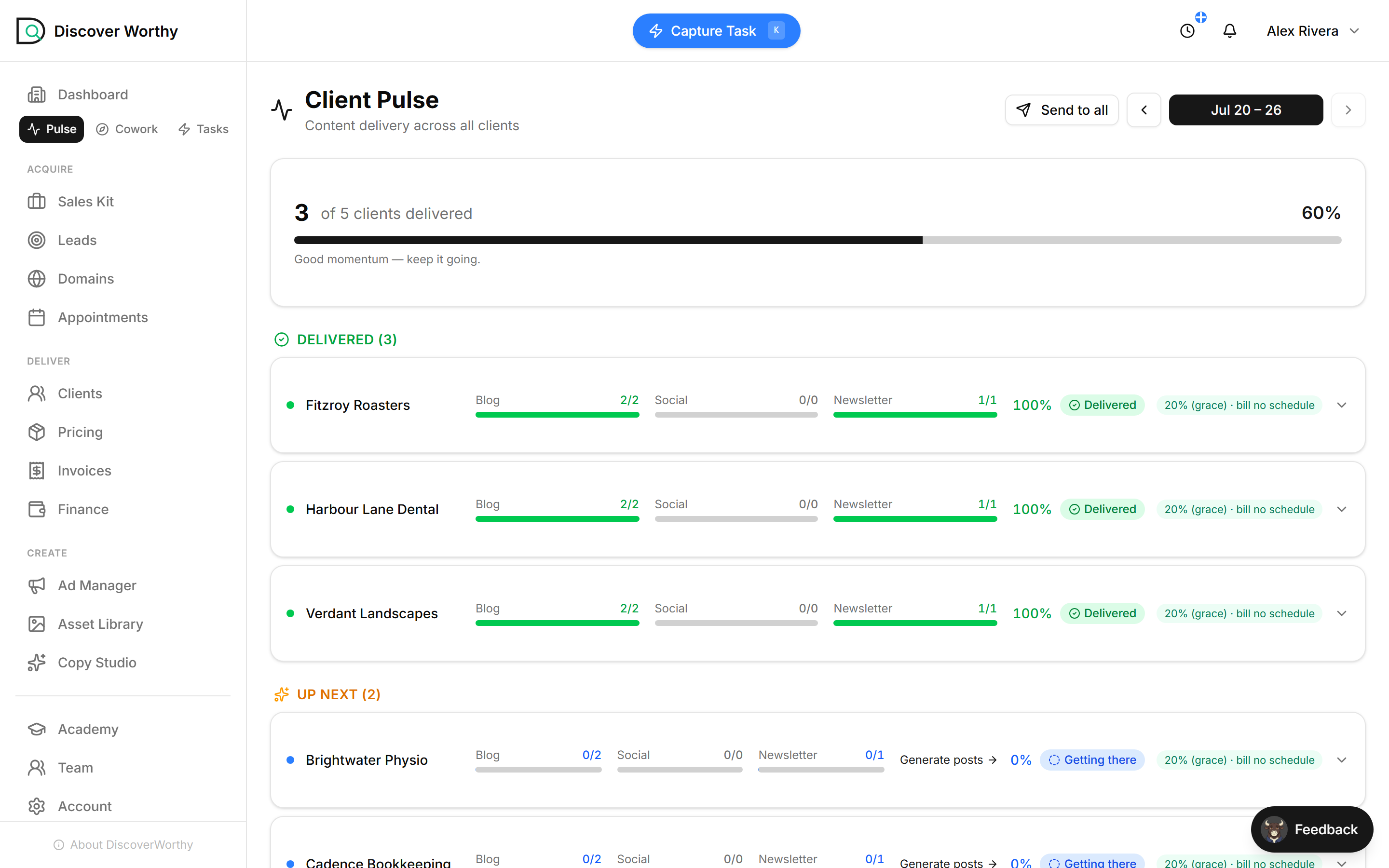
- 2
Send the weekly review
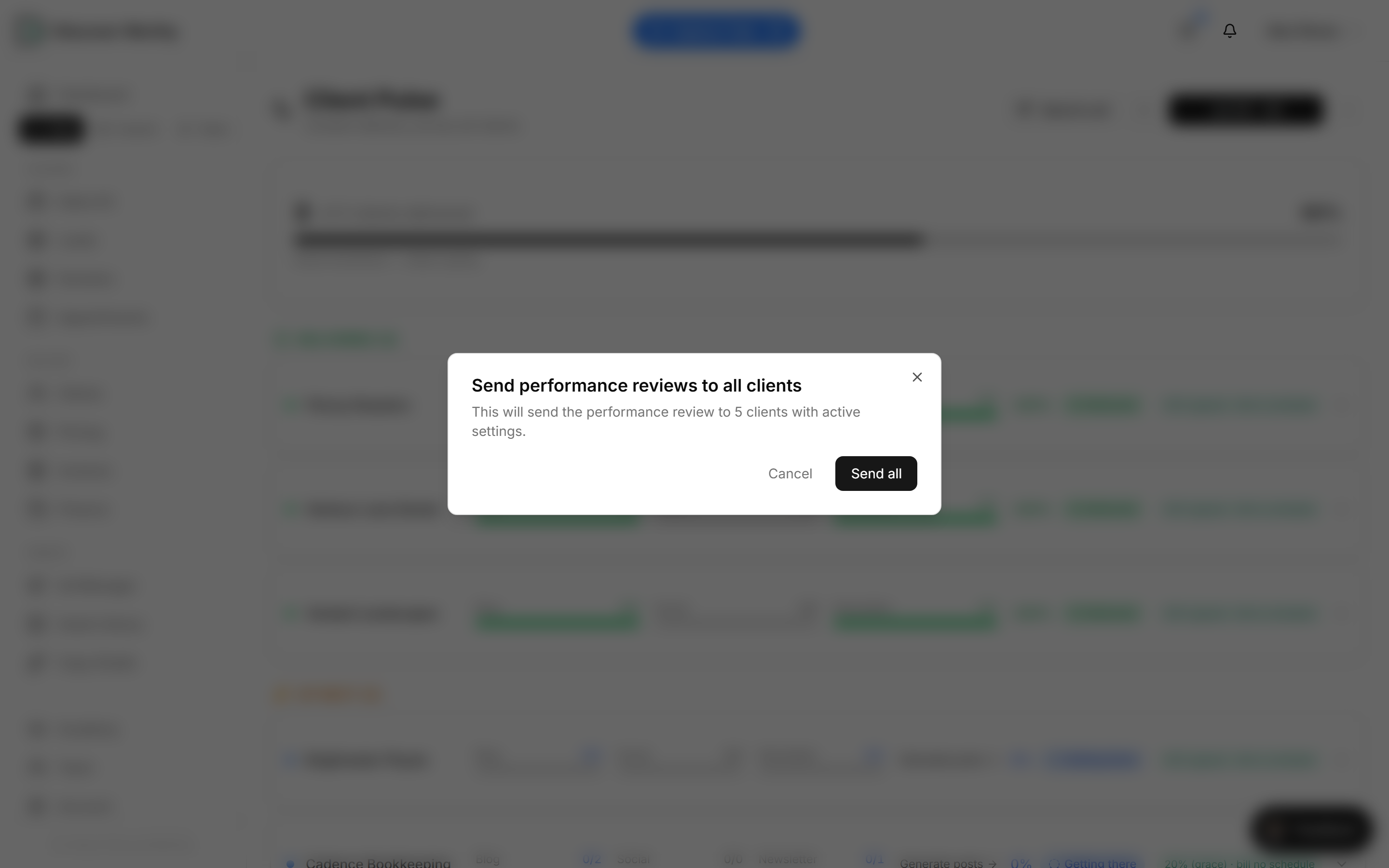
A client who sees what they are paying for stays. Send to all mails each client a performance review of their week — what went out, how it is tracking — in one action, so you are not writing five update emails by hand.
It only goes to clients whose review settings are on, and you can send an individual client theirs from their row. This is the single highest-leverage habit for keeping a book happy: proof of work, every week, automatically.
- 3
Work your queue
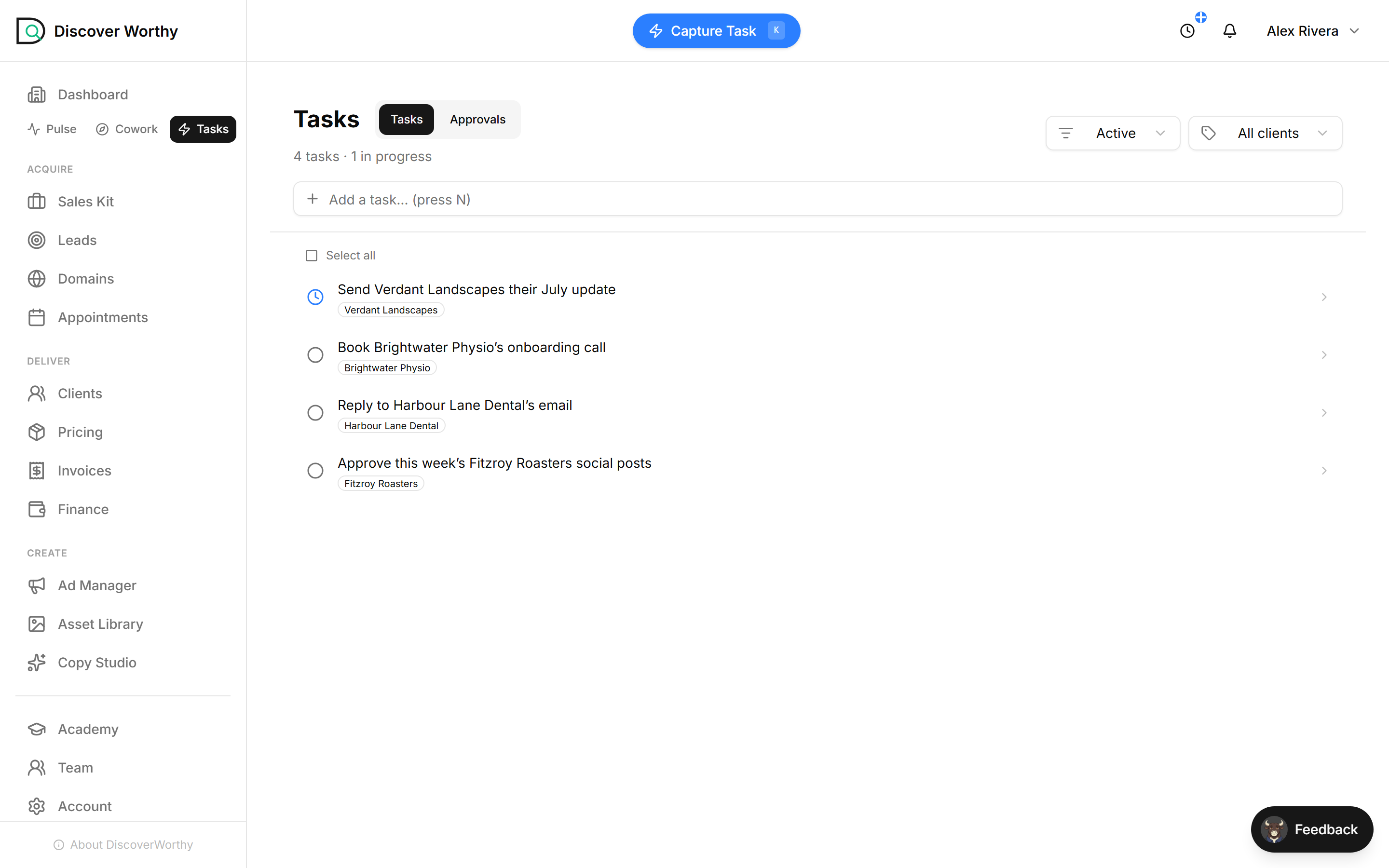
Tasks is your worklist across every client — approvals waiting, replies to send, calls to book — tagged by client so nothing falls between them. The count at the top tells you what is active and what is in progress.
Anything you notice while working — from Pulse, from a client email — can be dropped in here in a keystroke. It is the difference between running your clients and remembering your clients.
The Approvals tab sits beside Tasks: content the engine generated that is waiting on your yes before it publishes. Same worklist, one is your to-dos and the other is sign-off.
- 4
Draft it in Cowork
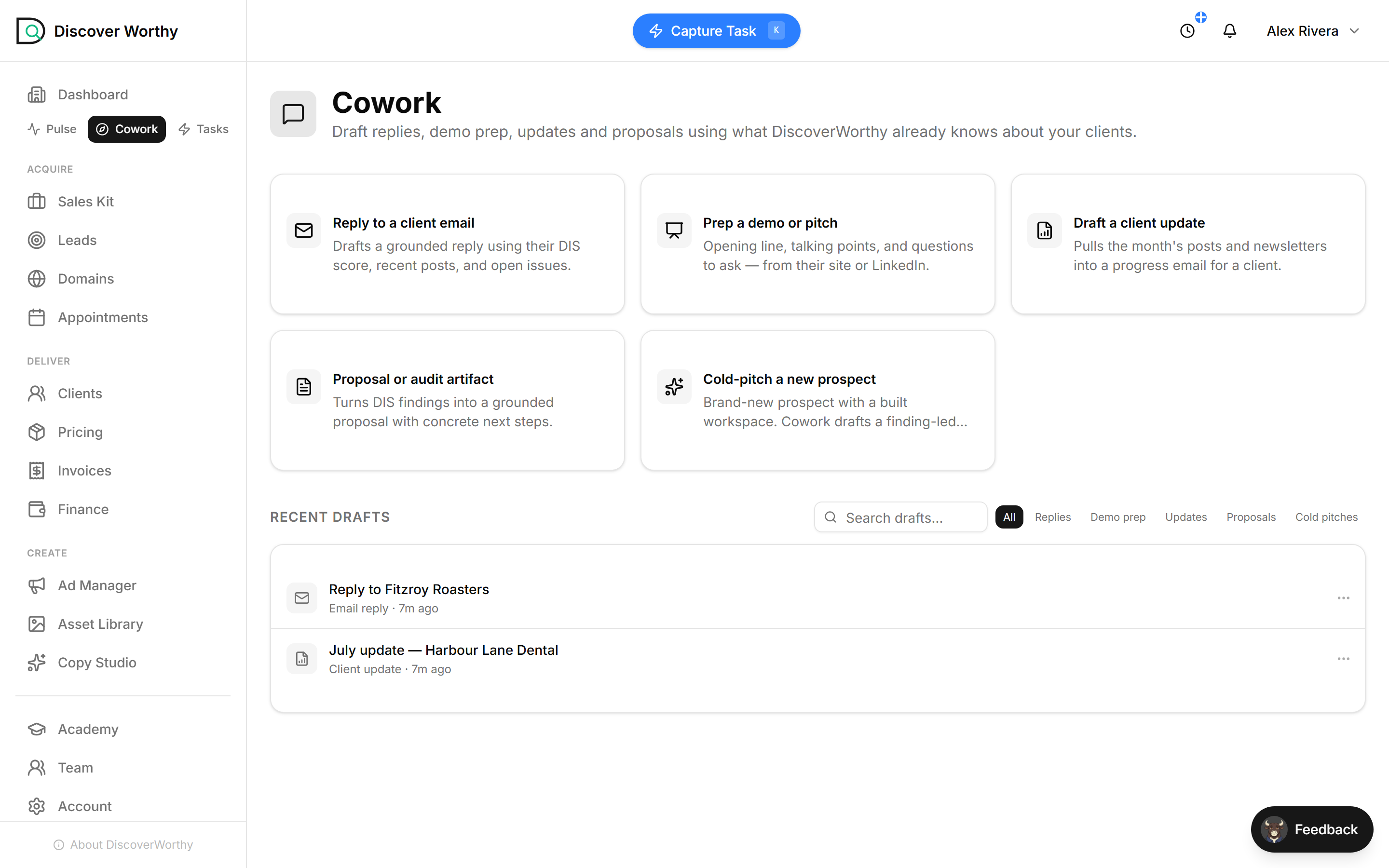
When you do need to write — a reply, a client update, a demo prep, a proposal — Cowork drafts it from what DiscoverWorthy already knows about that client: their score, their recent posts, their open issues. You edit rather than start from a blank page.
"Draft a client update" pulls the month's posts and newsletters into a progress email; "Reply to a client email" grounds a response in their actual situation. Everything you start lands in Recent drafts to pick back up.
Ready to start?
Create your freelancer account and follow along.